Arrangement
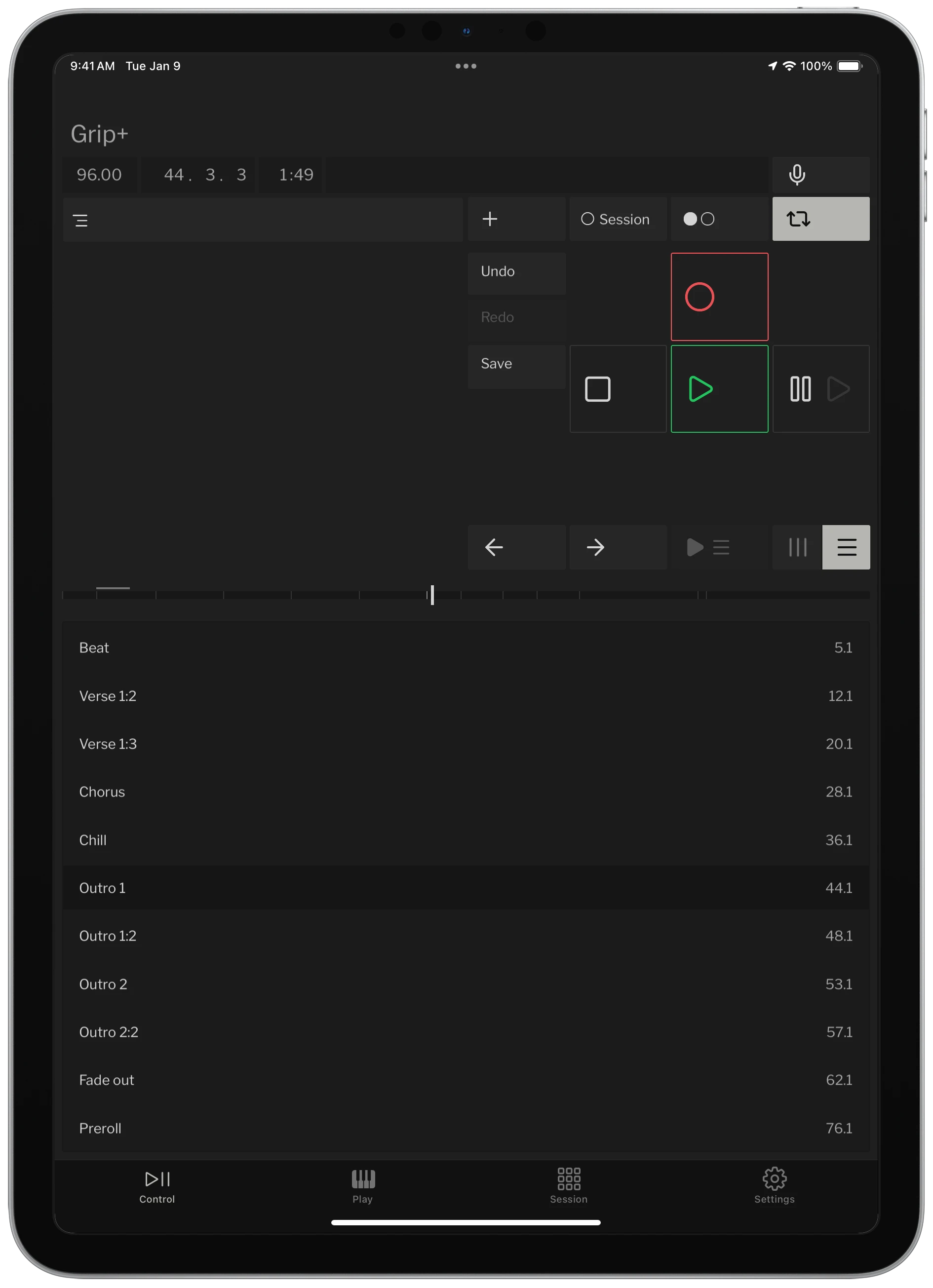
Navigate locators, scrub through your set, loop sections, and record pickups from your phone or tablet.
Flash sale! 33% off for a limited time. Use code IWNDA3MG
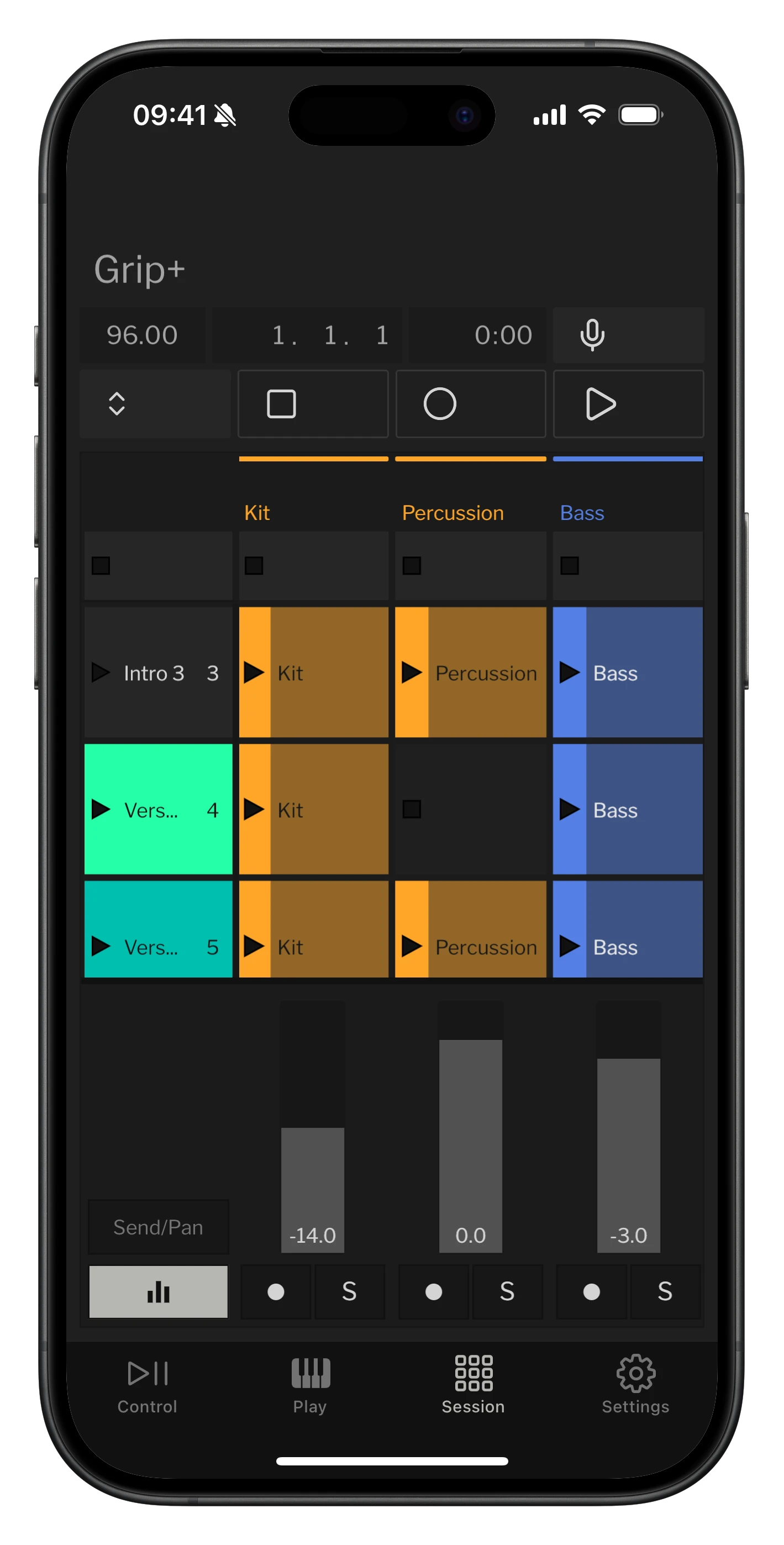
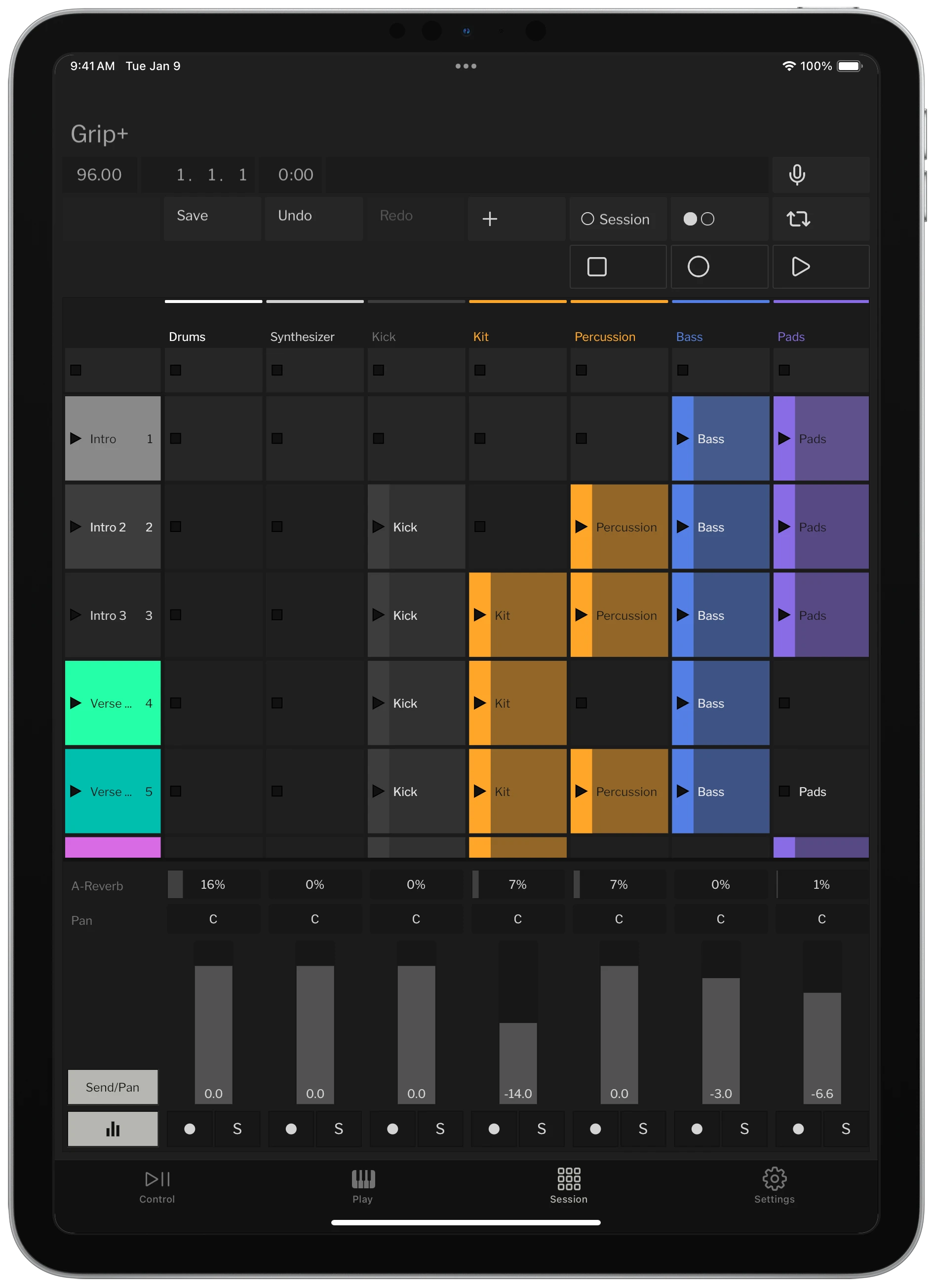
Grip is two connected apps.
Install Grip on your phone or tablet.


Install Grip Desktop on the computer running Ableton Live.
They connect over Wi-Fi.
Grip is two connected apps.
Install Grip on your phone or tablet.
Install Grip Desktop on the computer running Ableton Live.
They connect over Wi-Fi.
Grip is two connected apps. Install Grip on your phone or tablet. Install Grip Desktop on the computer running Ableton Live. They connect over Wi-Fi.
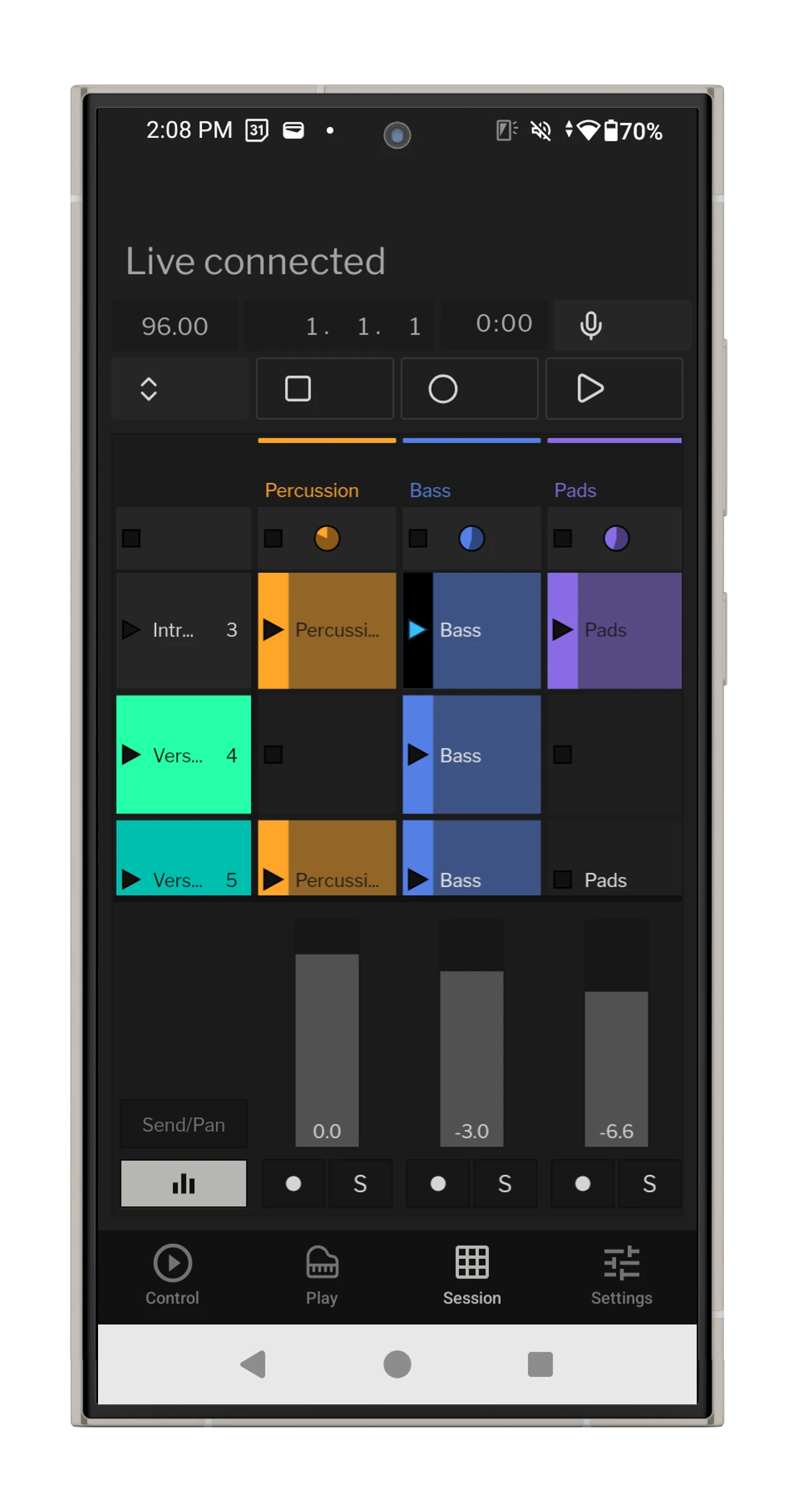
or get Grip for Android
or get Grip for Windows
Try every feature free for 7 days.
Buy Grip Desktop once for $15. One purchase unlocks every phone and tablet connected to that computer.
Grip is made by me, Adam, an independent developer. Your support means I can keep making software for musicians like you and me.
After 7 days, some features lock. Buy Grip Desktop to keep every feature unlocked.
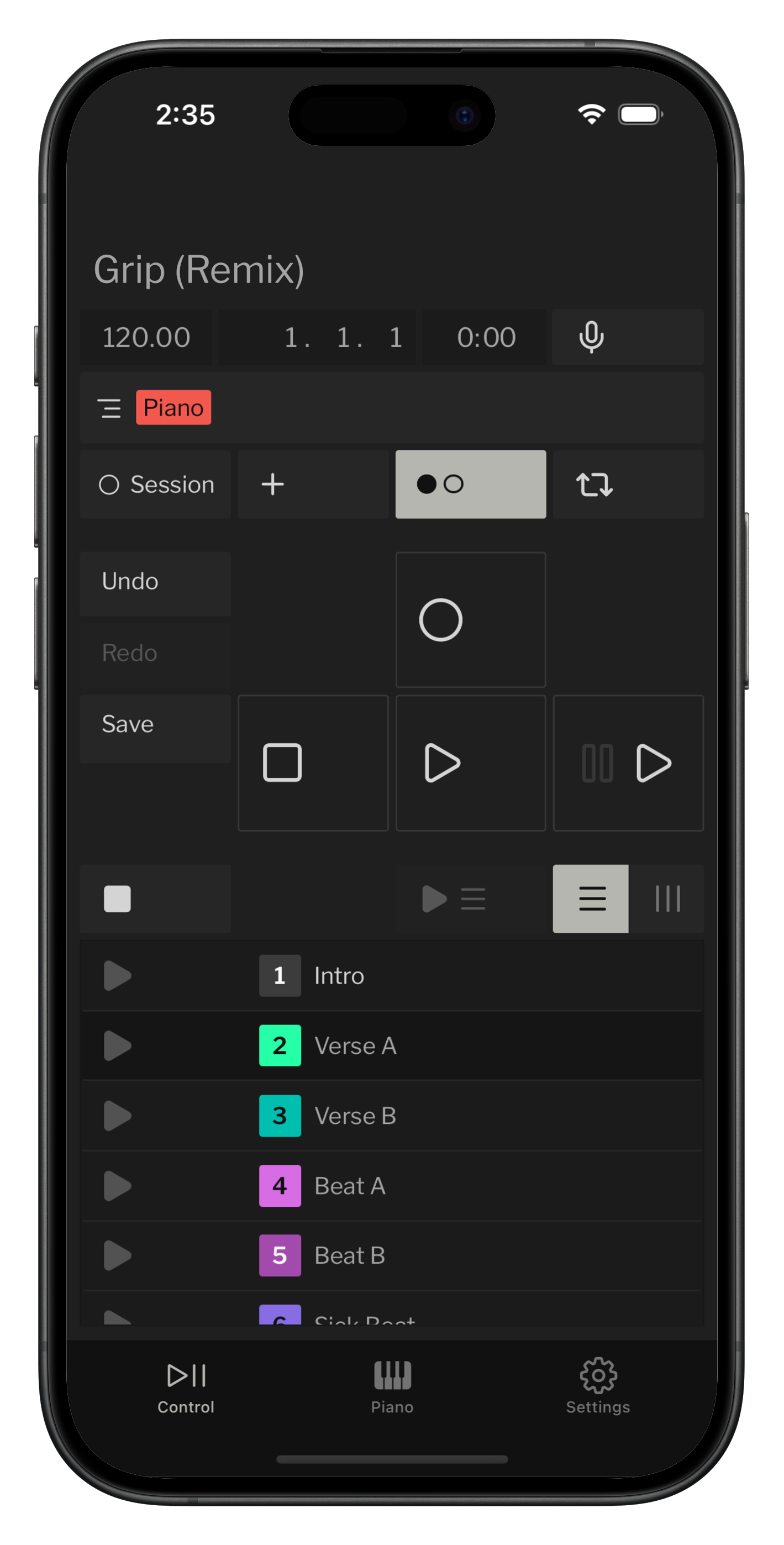
Always know
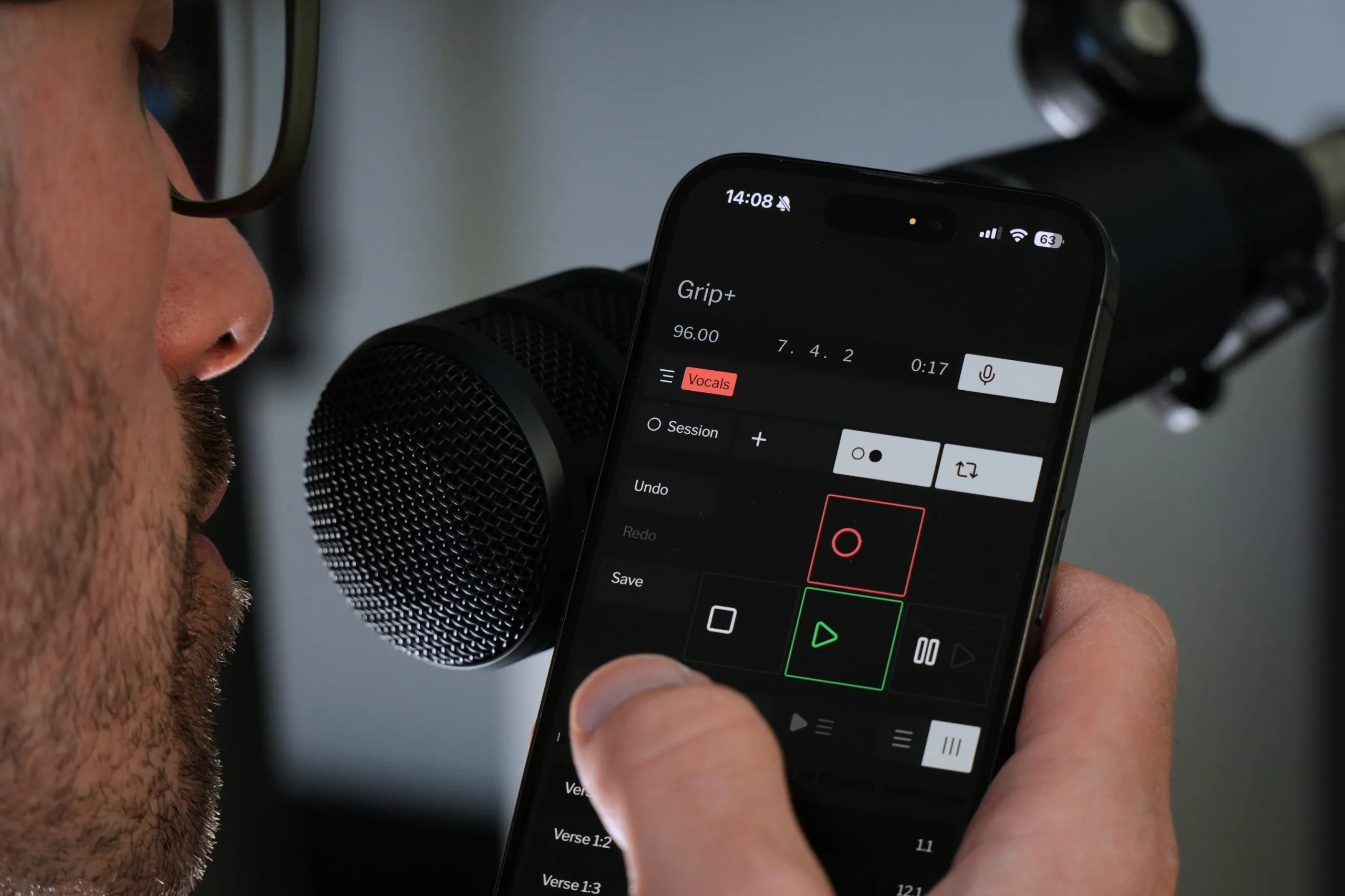
See which tracks are armed
Undo, redo, and save
Never lose your work, or your mistakes
Voice control
Natural hands-free control of Live
Transport controls
Big and spaced out to prevent accidental taps
Toggle views
Switch between session and arrangement
Launch scenes
Easy access to your scenes
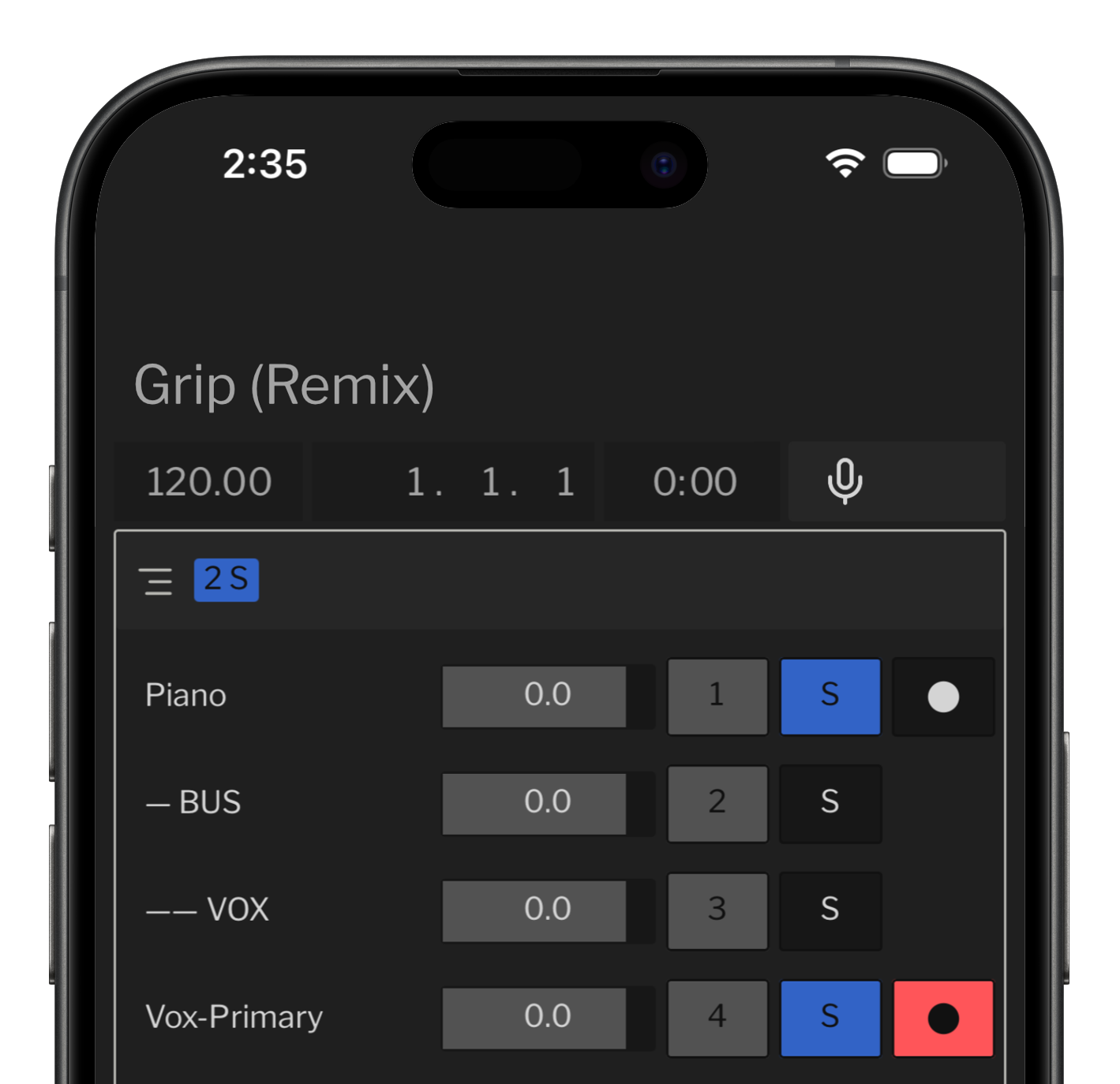
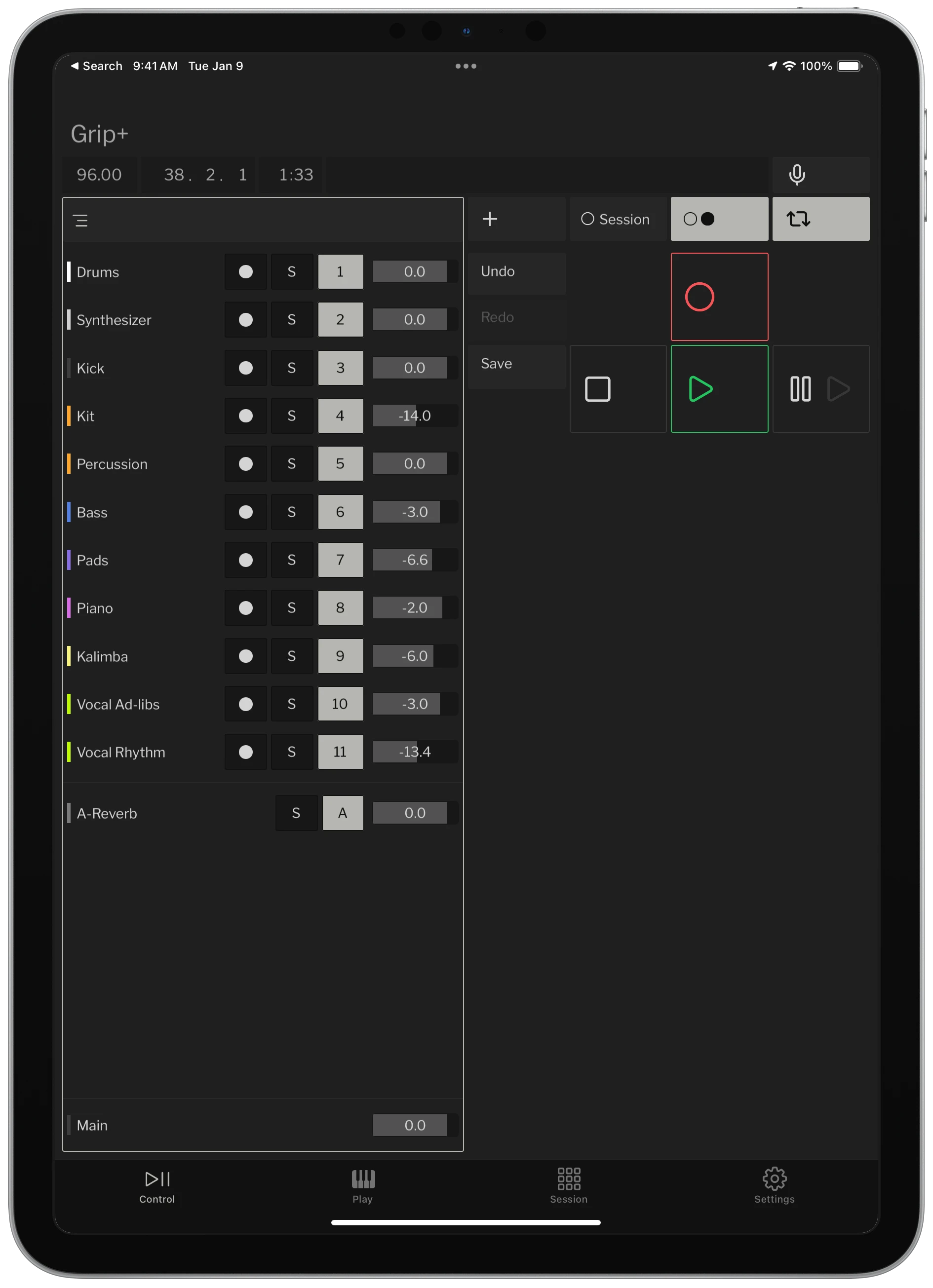
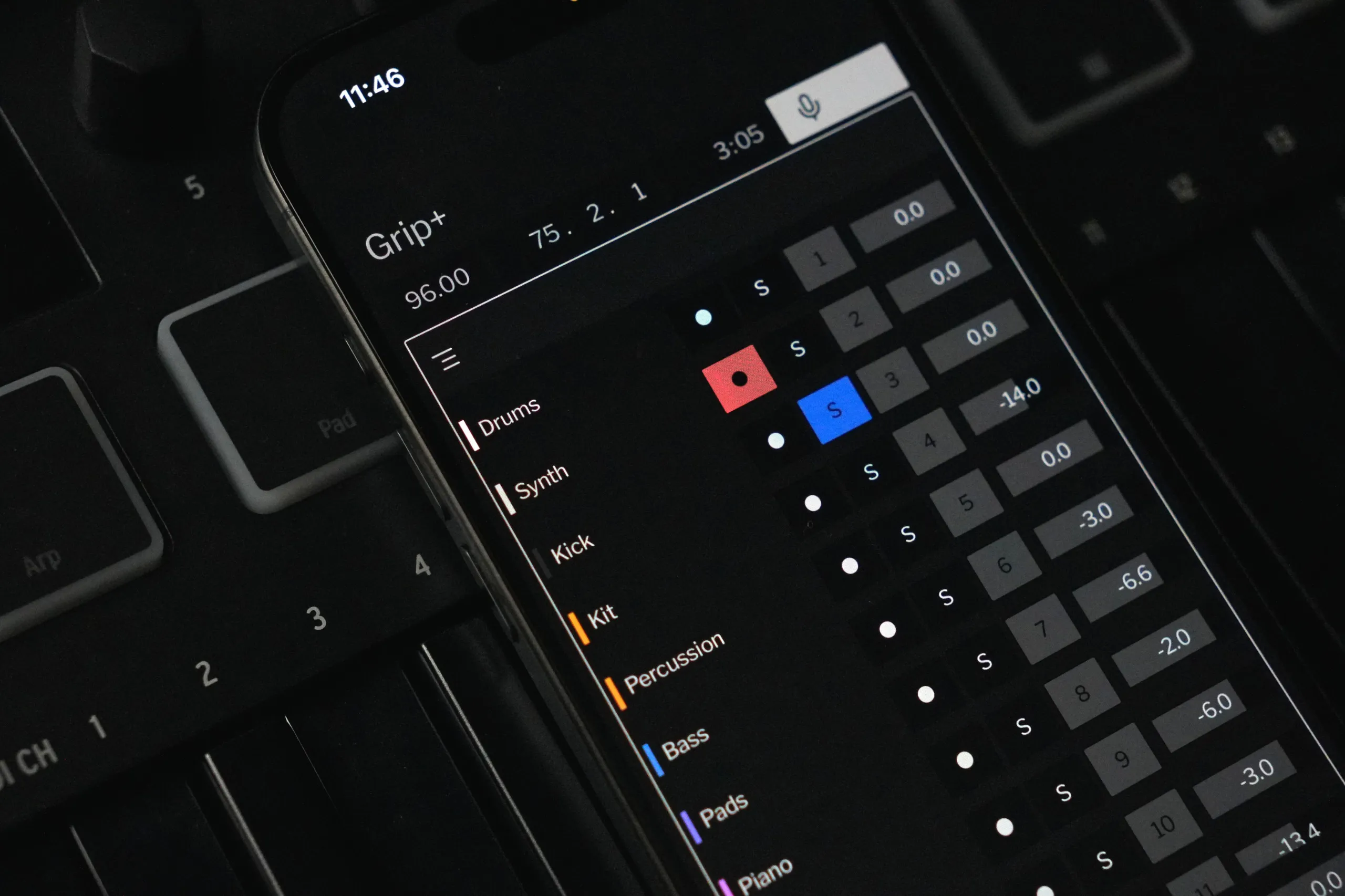
Track list
Instantly control your tracks away from your computer
Track controls
Arm, solo, mute, or mix from your phone
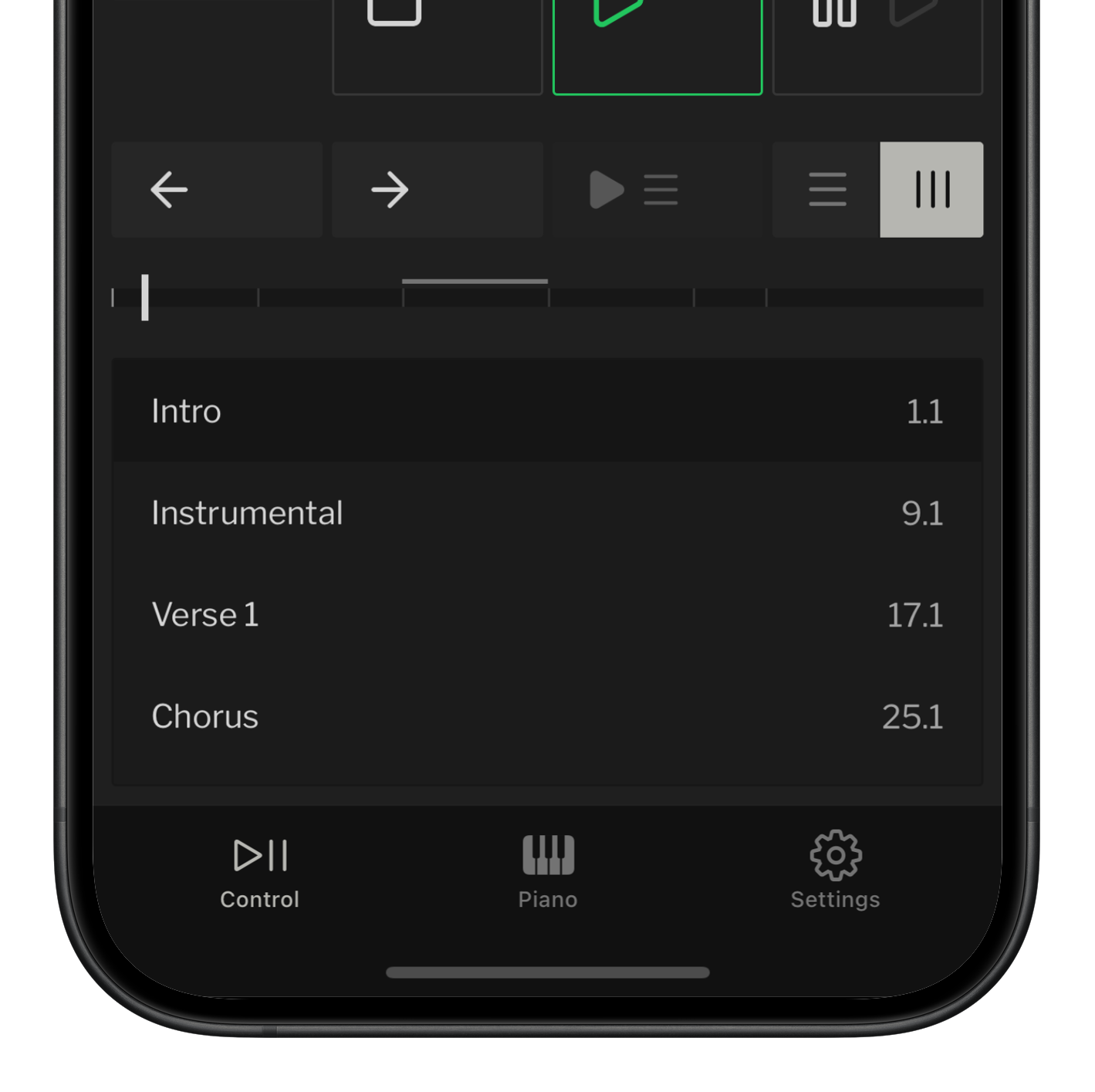
Tap back & forth
Navigate your arrangement
Slide to scrub
Scrub through your arrangement
Tap to jump
Jump anywhere in your arrangement
Full control
Expand for undo, redo, metronome, and transport buttons
Quick mix
Control volume, sends, and panning
Mute tracks
Focus on what matters
Record and launch
Multi-touch clip control