Getting started (Windows)
How Grip works
Grip is two connected apps. Install Grip on your phone or tablet. Install Grip Desktop on the computer running Ableton Live. They connect over Wi-Fi.
Requires Ableton Live 11 or later.
Before you begin
Windows will show security prompts during installation, including SmartScreen, firewall, and possibly antivirus warnings. This is expected for new software. This guide walks through each one.
1. Download the installer
Download Grip for Windows
Browser warning
Your browser may warn that the file is “not commonly downloaded”. This is normal for new software.
→ Click Keep or Keep anyway
2. Run the installer
Windows Defender SmartScreen
A blue “Windows protected your PC” screen will appear. This is Microsoft SmartScreen, which warns about any software that hasn't yet built up a download history with Microsoft. This is expected.
→ Click More info
→ Click Run anyway
Administrator permission
Windows will ask “Do you want to allow this app to make changes to your device?”
→ Click Yes
Grip needs administrator access to install the background companion and create a firewall rule so your phone or tablet can connect.
Follow the installer
The installer will set up the Grip app, the background companion, and a Windows Firewall rule for network discovery.
3. Windows Firewall
The installer creates a firewall rule automatically. If Windows still asks, or if your phone or tablet can't find your computer later, follow these steps.
Firewall prompt
If Windows asks “Allow Grip to communicate through Windows Firewall?”:
→ Check Private networks and click Allow access
Your phone or tablet discovers Grip over your local Wi-Fi network. Without this rule, your phone or tablet won't be able to find your computer.
If the firewall rule is missing
Open Windows Security → Firewall & network protection → Allow an app through firewall. Click Change settings, then find Grip in the list and check the Private checkbox. If Grip isn't listed, click Allow another app and browse to the Grip executable.
4. Set up Ableton Live
Grip is a control surface for Live, just like Push or any MIDI controller.
Open Live
Open Ableton Live on the same computer as the Grip app.
Open Settings
Go to Live → Settings (or press Ctrl+,)
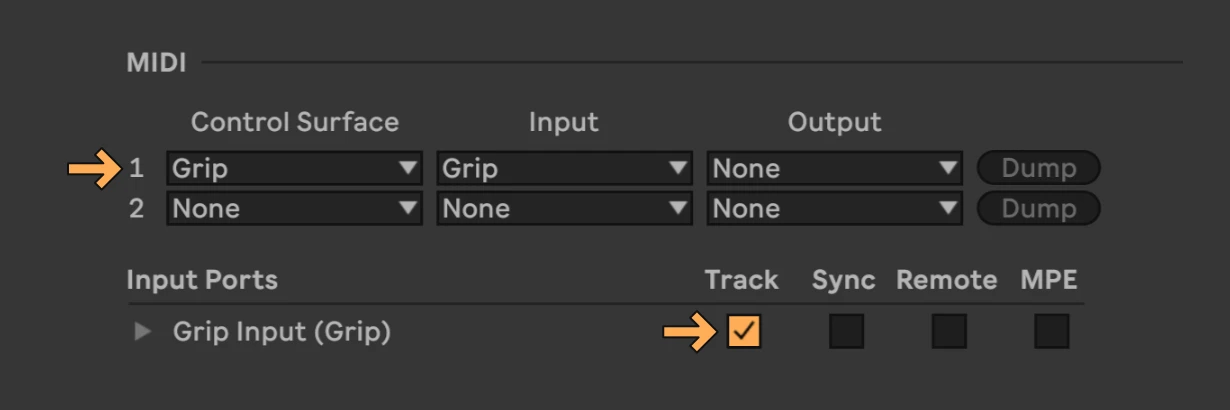
Choose Grip as a Control Surface
In the Link, Tempo & MIDI tab, choose Grip as a Control Surface.
5. Get Grip on your phone or tablet
Install Grip
Get Grip from the App Store or Google Play.
Get on Wi-Fi
Make sure your phone or tablet and Windows computer are on the same Wi-Fi network.
Open Grip
Open Grip on your phone or tablet. It should connect automatically. If it doesn't, check Grip Desktop on your computer.
Troubleshooting
Phone can't find Grip
- Your phone and computer must be on the same Wi-Fi network.
- Check that the Windows Firewall rule is enabled (see step 3).
- Make sure Grip is running on your computer. All three icons in the setup window should be green.
- In Grip on your PC, choose File > Restart Companion.
Companion won't start
- In Grip on your PC, choose File > Restart Companion.
- Check that your antivirus isn't blocking Grip. Add an exception for C:\Program Files\Grip if needed.
Ableton not detected
- Make sure Ableton Live has been opened at least once.
- Check that Grip is set as a control surface (see step 4).
Still stuck?
Send a diagnostic report from the Grip app (Help → Save Diagnostic Report) and email it to [email protected].